Updated Date:
This guide explains how to set a tracking template at the campaign level. Be aware that a template set on a campaign will override any template you have set at the account level for that campaign only.
Warning: This is an advanced procedure. For most users, the standard account-level setup is sufficient and recommended. An incorrectly configured tracking template can prevent your ads in that campaign from running.
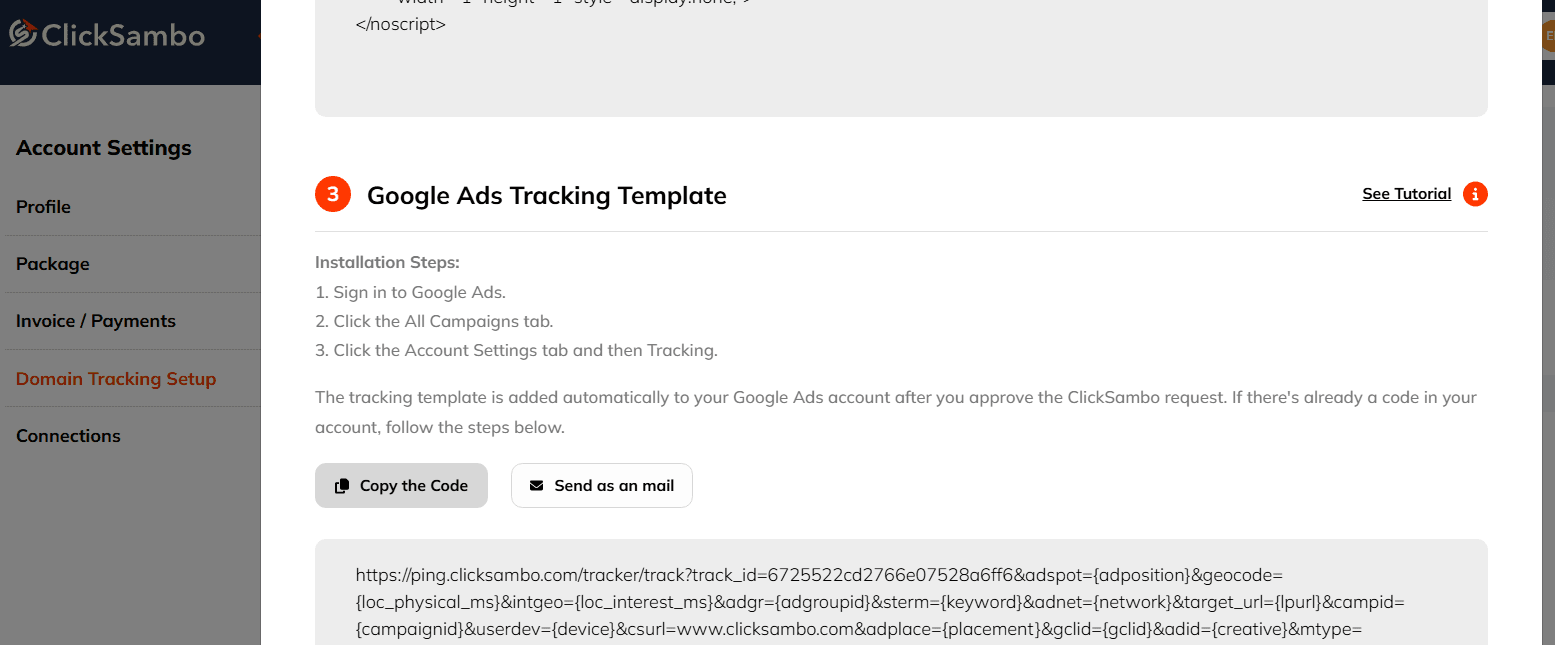
Log in to your ClickSambo dashboard.
Navigate to Account Settings > Domain Tracking Setup.
Next to your related domain, Click Detail.
On the opening pop-up, Find option 3 as ClickSambo's Google Ads Tracking Template.
Click Copy the Code to get your template
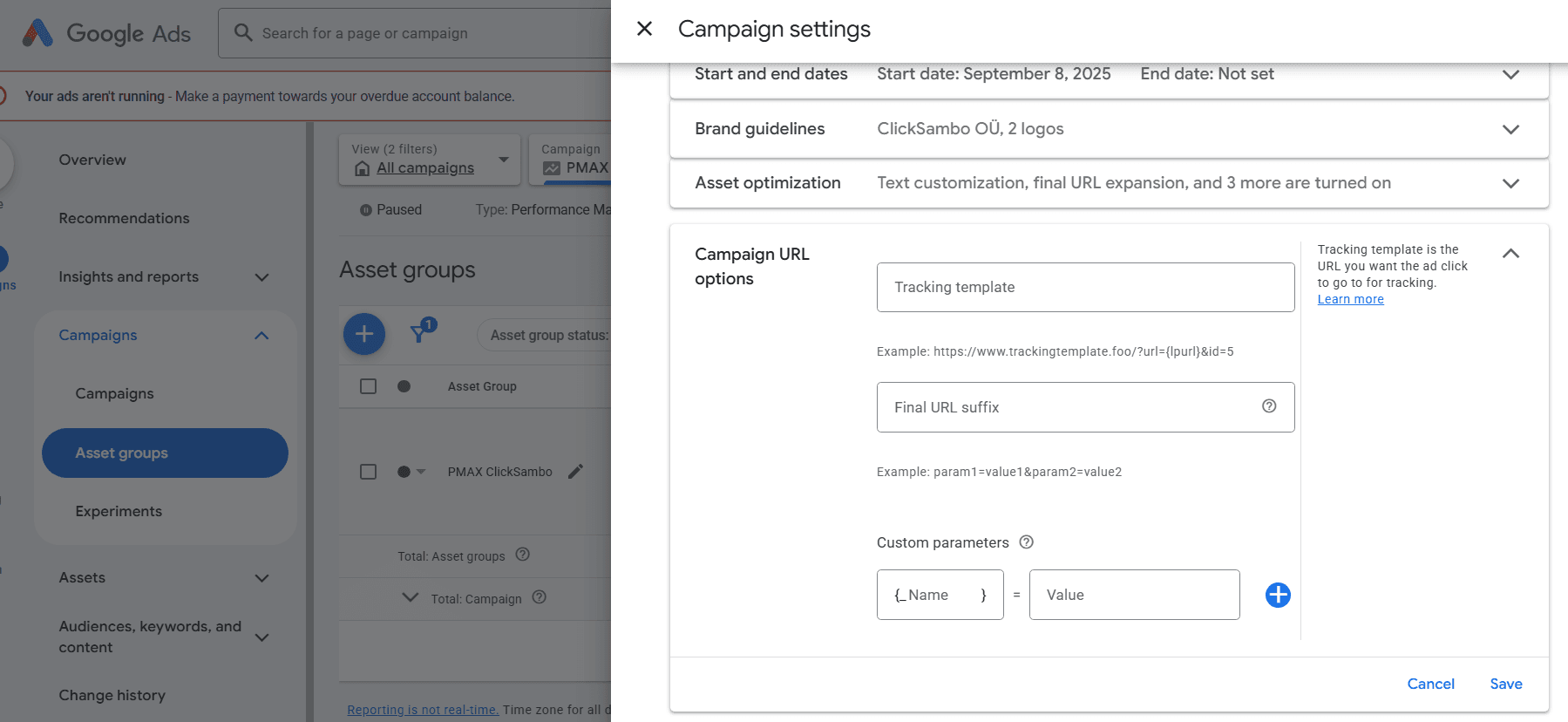
Log in to your Google Ads account.
From the navigation menu on the left, go to the Campaigns list.
Click on the name of the specific campaign you wish to edit.
In the campaign's menu, click on Campaign Settings.
Scroll down and find the Campaign URL options section. You may need to click "Additional settings" to expand it.
Locate the "Tracking template" field.
If the field is empty, simply paste the ClickSambo parameter you copied.
If a template already exists, you must carefully append the ClickSambo parameter to the end. This usually means adding it after the {lpurl} parameter with an ampersand (&).
Example: {lpurl}?existing_param=1**&your_clicksambo_google_ads_tracking_template**Crucial Step: Test Your Template. Click the Test button next to the field. Google will run a test to ensure your link is valid. A successful test is required for your ads to serve correctly.
If the test passes, click Save.
Overriding Behavior: Remember, this campaign-level template now applies only to this specific campaign, overriding any account-level settings. All other campaigns in your account will continue to use the account-level template.
Auto-Tagging: Ensure that Auto-tagging remains enabled in your main Account Settings (Settings > Account Settings > Auto-tagging) for full tracking functionality.
Need Help? Modifying tracking templates can be complex. If you are unsure how to proceed, please contact our support team for guidance before saving your changes.


Protect your marketing budget and increase revenue with ClickSambo
Start Trial
Analyze your account and uncover losses caused by fake clicks.
Get Free Report
Reach us easily via WhatsApp, live chat, or email.
Contact Us
Join our partner program and turn ad-fraud protection into a scalable, recurring revenue stream.

 Other Advertisement Analytics Performance