Updated Date:
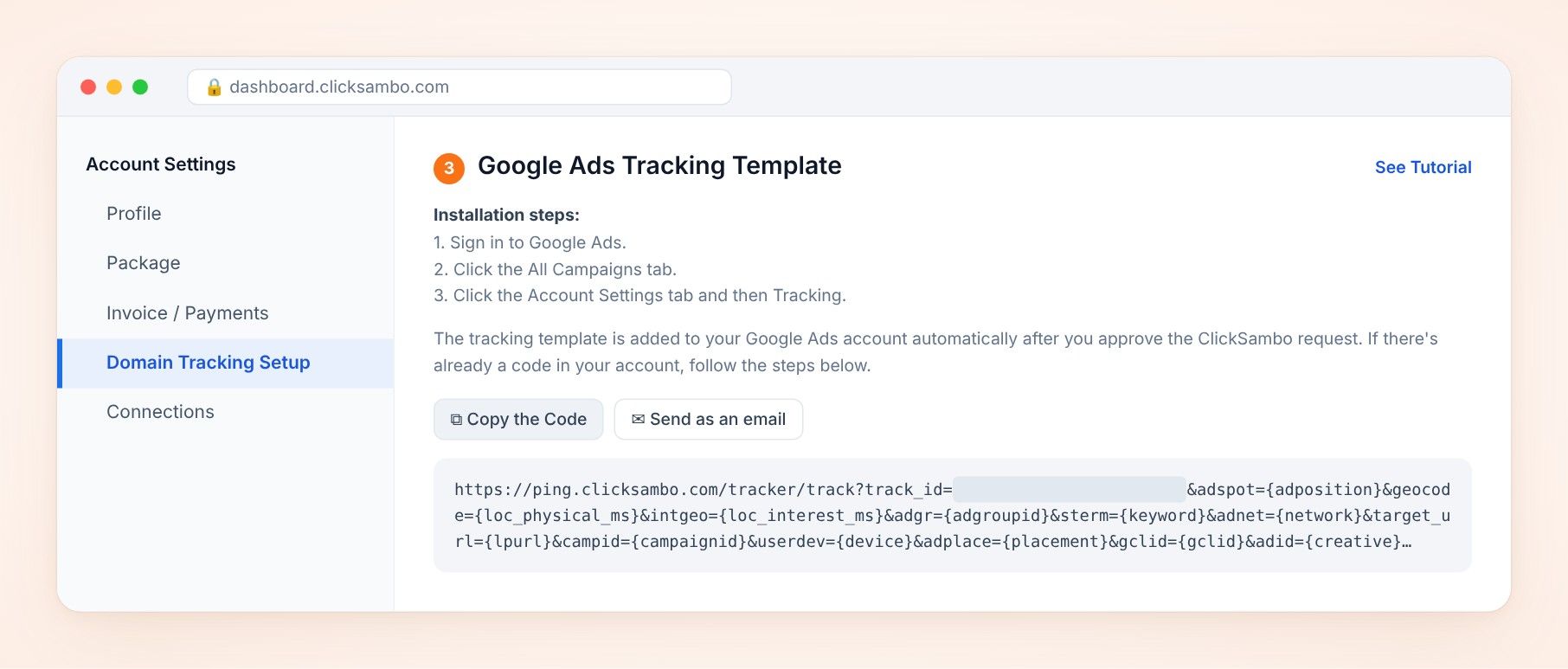
Every time someone clicks your ad, it passes the necessary tracking parameters to ClickSambo for analysis.
Log in to your ClickSambo dashboard.
Go to Account Settings > Domain Tracking Setup.
Find the domain you are setting up and click the Detail button next to it.
Find the Tracking Template field.
ClickSambo’s Google Ads connection adds this template at the account level automatically. You only need to copy it if you use a campaign- or ad group-level template in Google Ads. In that case, paste it into the Tracking template field at that level.
It looks like this:
https://ping.clicksambo.com/tracker/track?track_id=your-unique-id&adspot={adposition}&geocode={loc_physical_ms}&intgeo={loc_interest_ms}&adgr={adgroupid}&sterm={keyword}&adnet={network}&target_url={lpurl}&campid={campaignid}&userdev={device}&csurl=www.yoursite.com&adplace={placement}&gclid={gclid}&adid={creative}&mtype={matchtype}&targetid={targetid}&feedid={feeditemid}&devmodel={devicemodel}&qtext={querystringtext}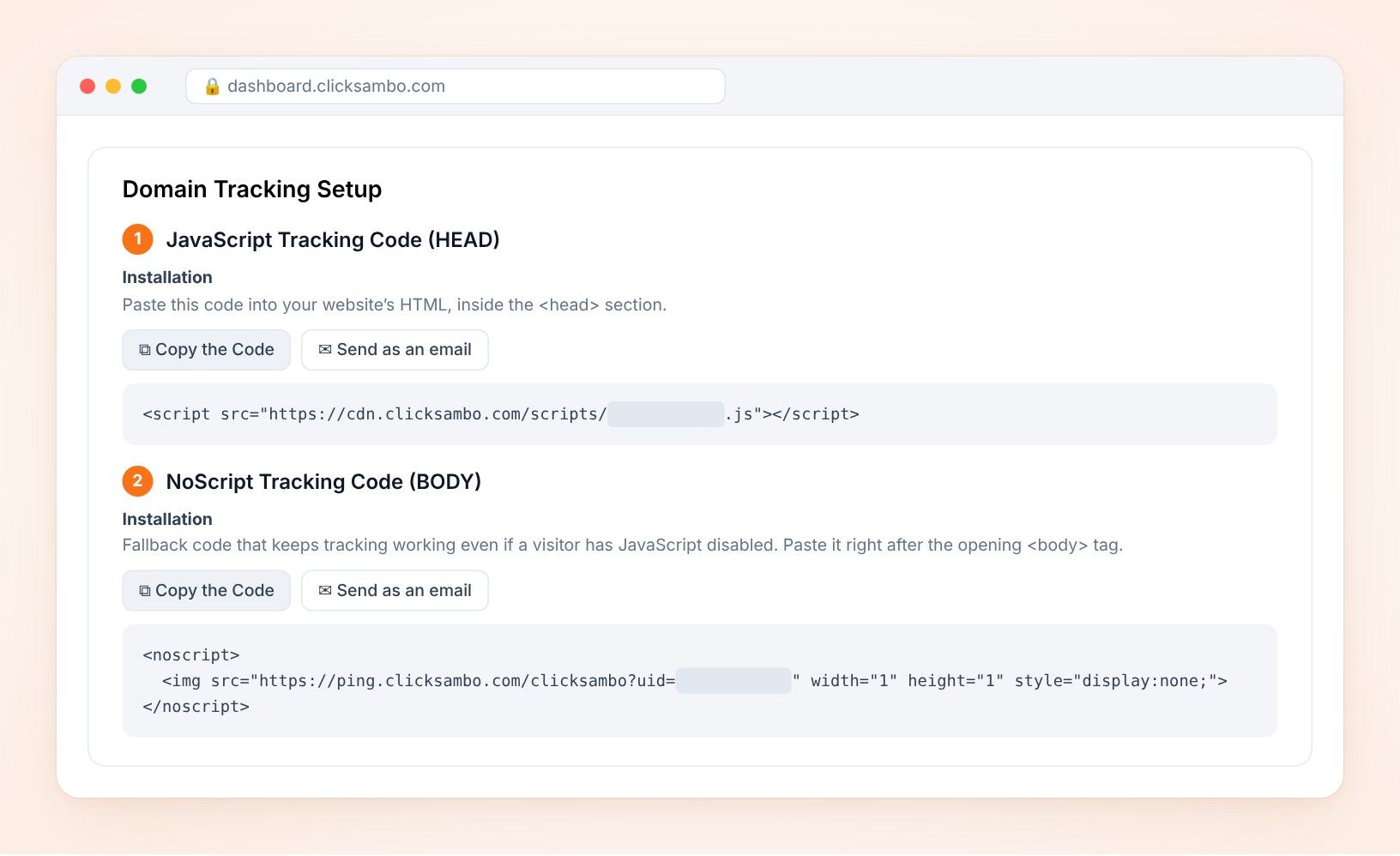
They work together to analyze visitor behavior after the click.
Log in to your ClickSambo dashboard.
Go to Account Settings > Domain Tracking Setup.
Find your domain and click the Detail button. You’ll see two separate code snippets.
A. Tracking code (primary): The main JavaScript code for real-time analysis. Place it inside the <head> section of your website, just before the closing </head> tag. It looks like this:
<script src="https://cdn.clicksambo.com/scripts/your-unique-domain-id.js"></script>B. NoScript code (fallback): Tracks visitors who have JavaScript disabled. Place it inside the <body> section, right after the opening <body> tag. It looks like this:
<noscript>
 <img src="https://ping.clicksambo.com/clicksambo?uid=your-unique-id"
 width="1" height="1" style="display:none;">
</noscript>


Protect your marketing budget and increase revenue with ClickSambo
Start Trial
Analyze your account and uncover losses caused by fake clicks.
Get Free Report
Reach us easily via WhatsApp, live chat, or email.
Contact Us
Join our partner program and turn ad-fraud protection into a scalable, recurring revenue stream.

 Other Advertisement Analytics Performance