Updated Date:
This report is your central hub for reviewing all automated and manual blocking/unblocking actions.
From this screen, you can search for specific IPs, sort the data, export it for your records, and manually block/unblock IPs if needed.
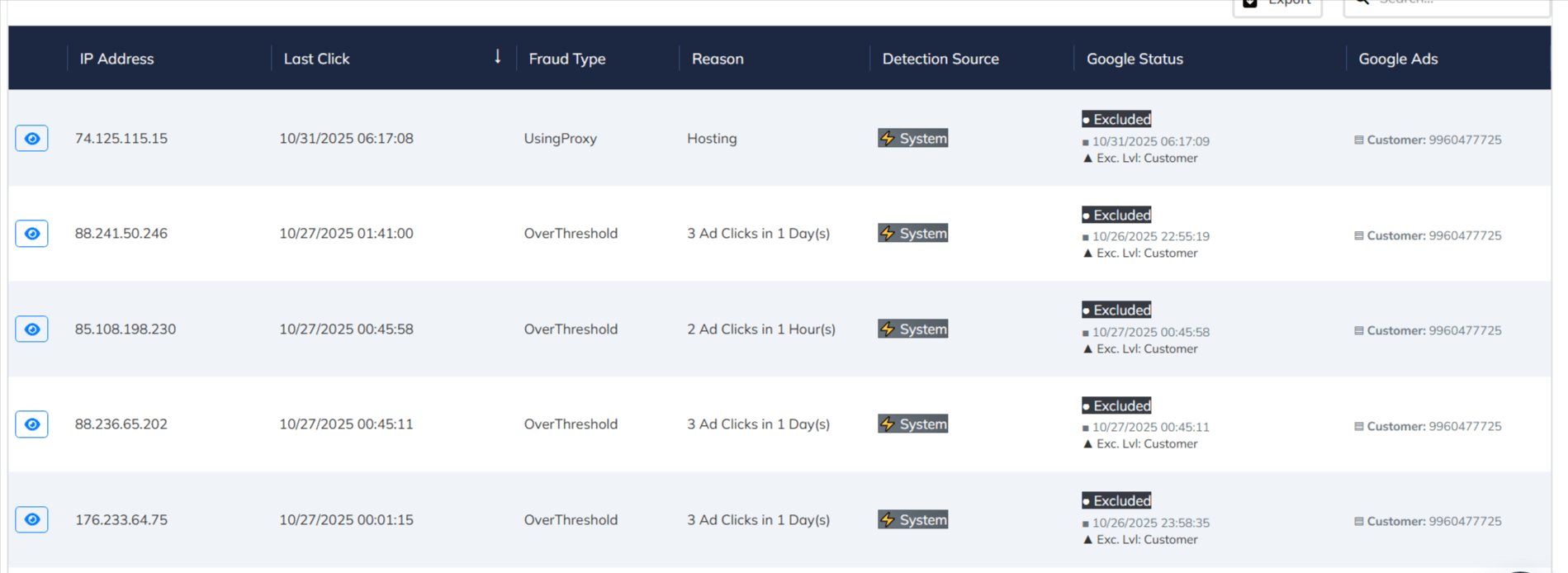
| Checkbox | Use the check box to reach the click report detail. |
| IP Address | The specific IP address that has been blocked. |
| Last Click | This timestamp shows the exact date and time of the most recent fraudulent click we detected from this IP before it was blocked. |
| Fraud Type | The general category of fraud detected, according to our official classifications (e.g., Over-Threshold, Manual, etc.). |
| Reason | More specific detail about why the IP was blocked. It can be a system-generated reason (e.g., "2 Ad Clicks in 1 Hour(s)") or it will state "User Blocked" if you added it manually. |
| Detection Source | Indicates how the block was initiated. "System" means the IP was automatically flagged and blocked by our bot traffic filtering solutions, while "Manual" indicates a user-initiated block. |
| Google Status | The sync status with Google Ads and when it happened. It will typically show "Excluded" along with the date and time the IP was successfully added to google's exclusion list. |
| Google Ads | identifies exactly where the IP exclusion was applied within your Google Ads account, showing the specific Campaign or Customer IDs affected by the block. |
Verify Protection: Regularly scan this list to see the volume and types of threats ClickSambo is automatically protecting you from.
Investigate a specific IP: Use the search bar to look up a specific IP address to see if and why it has been blocked.
Records: Use the "Export" feature to download a list of all blocked IPs for your own internal analysis or reporting.


Protect your marketing budget and increase revenue with ClickSambo
Start Trial
Analyze your account and uncover losses caused by fake clicks.
Get Free Report
Reach us easily via WhatsApp, live chat, or email.
Contact Us
Join our partner program and turn ad-fraud protection into a scalable, recurring revenue stream.

 Other Advertisement Analytics Performance